APEX Integration
APEX Integration
Section titled “APEX Integration”Accessibility
Section titled “Accessibility”Keyboard-only actions are supported. In an interactive grid, read mode navigate to a cell containing the plug-in and press the Enter key to activate interactive grid edit mode. When the plug-in checkbox or icon is in focus, you can change the state by pressing the Spacebar key.
Read-only State
Section titled “Read-only State”The read-only column setting is supported by disabling the ability of the user to change the value when they click on the checkbox (or icon).
Dynamic Actions
Section titled “Dynamic Actions”Set Value
Section titled “Set Value”The plug-in supports the native Set value dynamic action. It can be used to set the value of the column based on the value in other columns.
Events
Section titled “Events”Change event
Section titled “Change event”The plug-in exposes the Change [United Codes Interactive Grid Checkbox] event. The difference between this event and the native column Change event is that it reveals additional data through this.data.
Event Data
| Property | Description |
|---|---|
| this.data.region | The region interface returned from the execution of apex.region. |
| this.data.grid | The interactiveGridView interface returned from the getViews interactiveGrid widget method. |
| this.data.record | The result of the grid’s widget method getActiveRecord. |
| this.data.recordId | Record id returned by the model interface using the getRecordId method. |
| this.data.column | The column name on which the plug-in change event occurred. |
| this.data.value | The current value of the given column in the given record. |
The plug-in can be debugged using APEX debug mode in the browser console (client-side) and built-in debug.
Validation
Section titled “Validation”The plug-in has built-in validation which is executed when the interactive grid is saved. If the value of a column using the plug-in is equal to the Value When Checked or Value When Not Checked attribute or is NULL then validation is successful. Otherwise, the built-in validation raises an error.
The validation error message can be customized using UC_IG_CHECKBOX_VALIDATION APEX Translation Text. Use %0 to reference a column label and %1 to reference the invalid value.
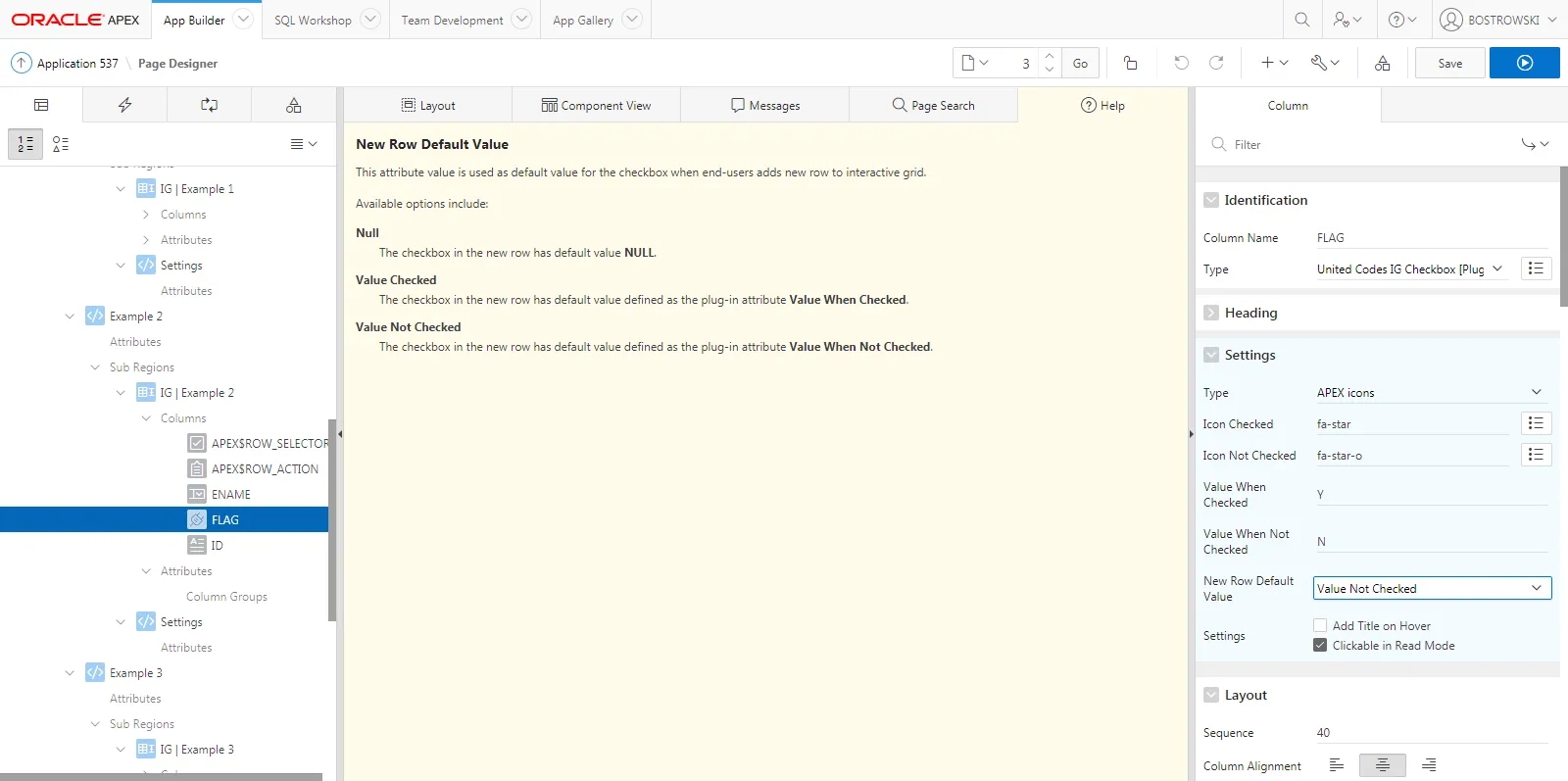
Help in the Page Designer
Section titled “Help in the Page Designer”The plug-in attributes are exposed along with help text built into the page designer in the Help tab. Example help for the Settings / New Row Default Value plug-in attribute is presented below: