
License activation
After successful installation, the plug-in license has to be activated using PL/SQL code. The instructions describe activating the plug-in United Codes Rich Text Editor Pro in the Trial Mode.
Get a license from the portal
Section titled “Get a license from the portal”The license activation process requires the plug-in license API key and plug-in name. Both information can be found in the United Codes Plug-ins Pro portal.
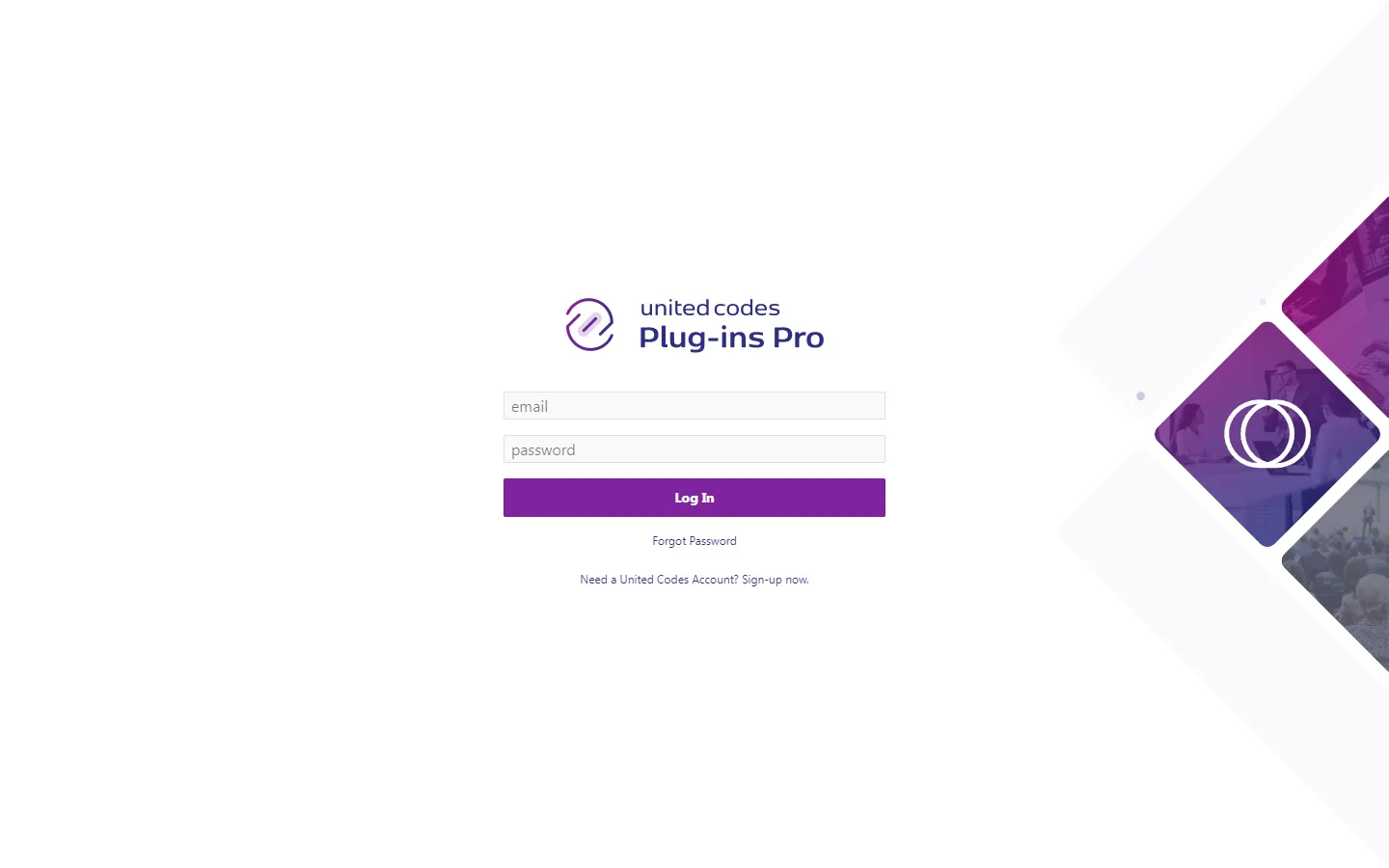
- Log into Plug-ins Pro Portal
-
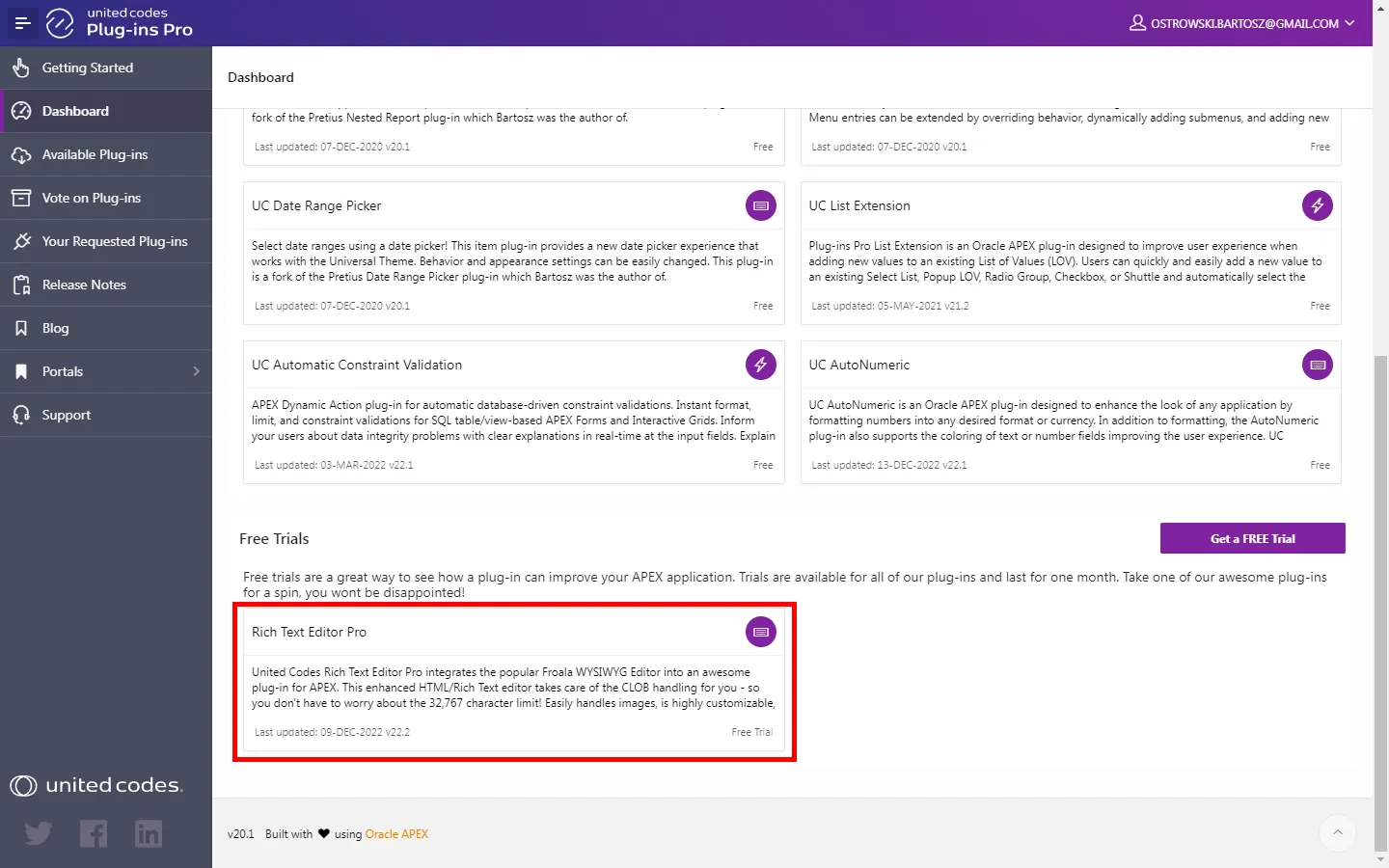
Scroll the dashboard page to the section Free Trials
-
Click the Rich Text Editor Pro card
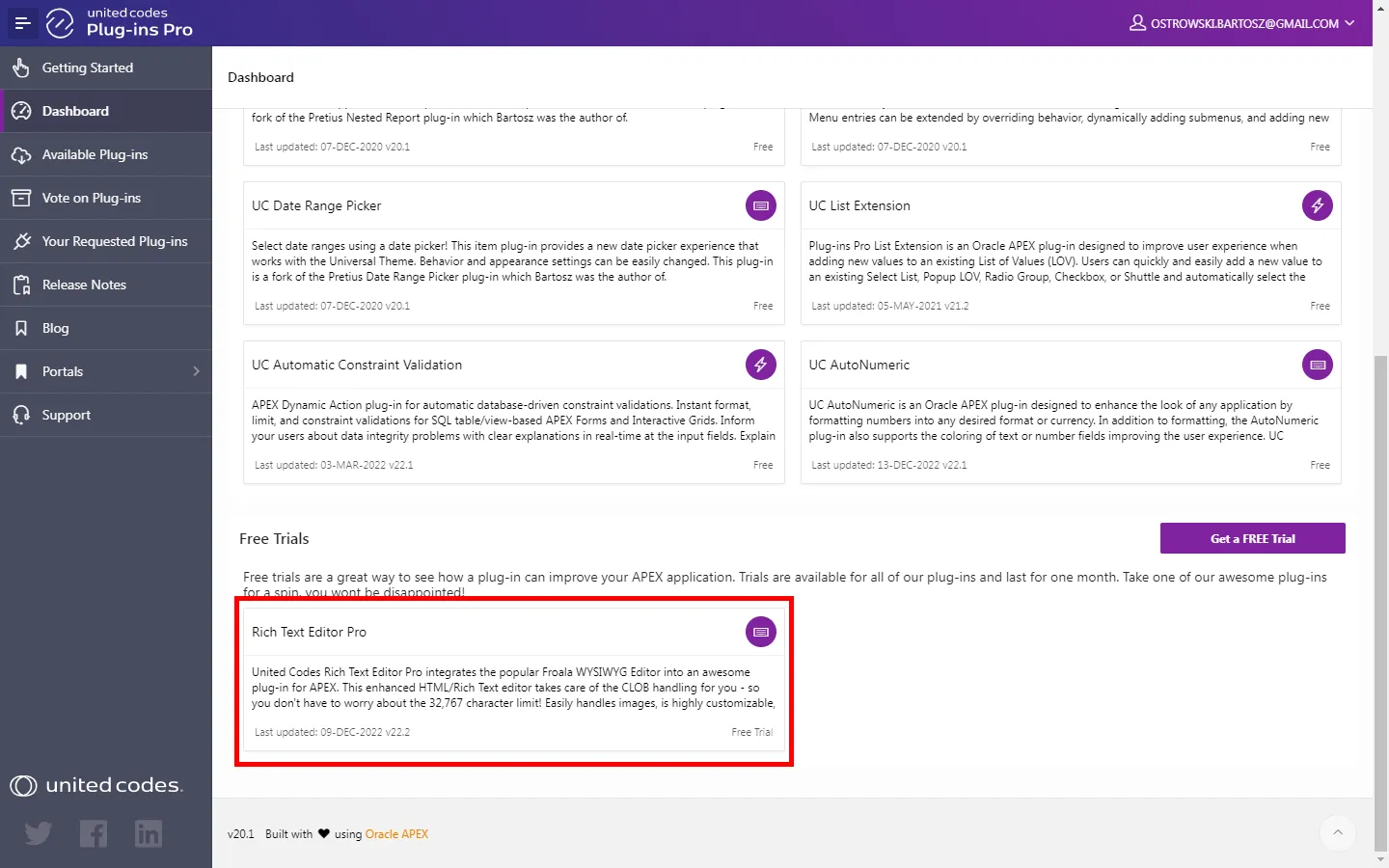
- The plug-in name and the API key are presented in opened modal page. These values are required to activate the plug-in in the next steps
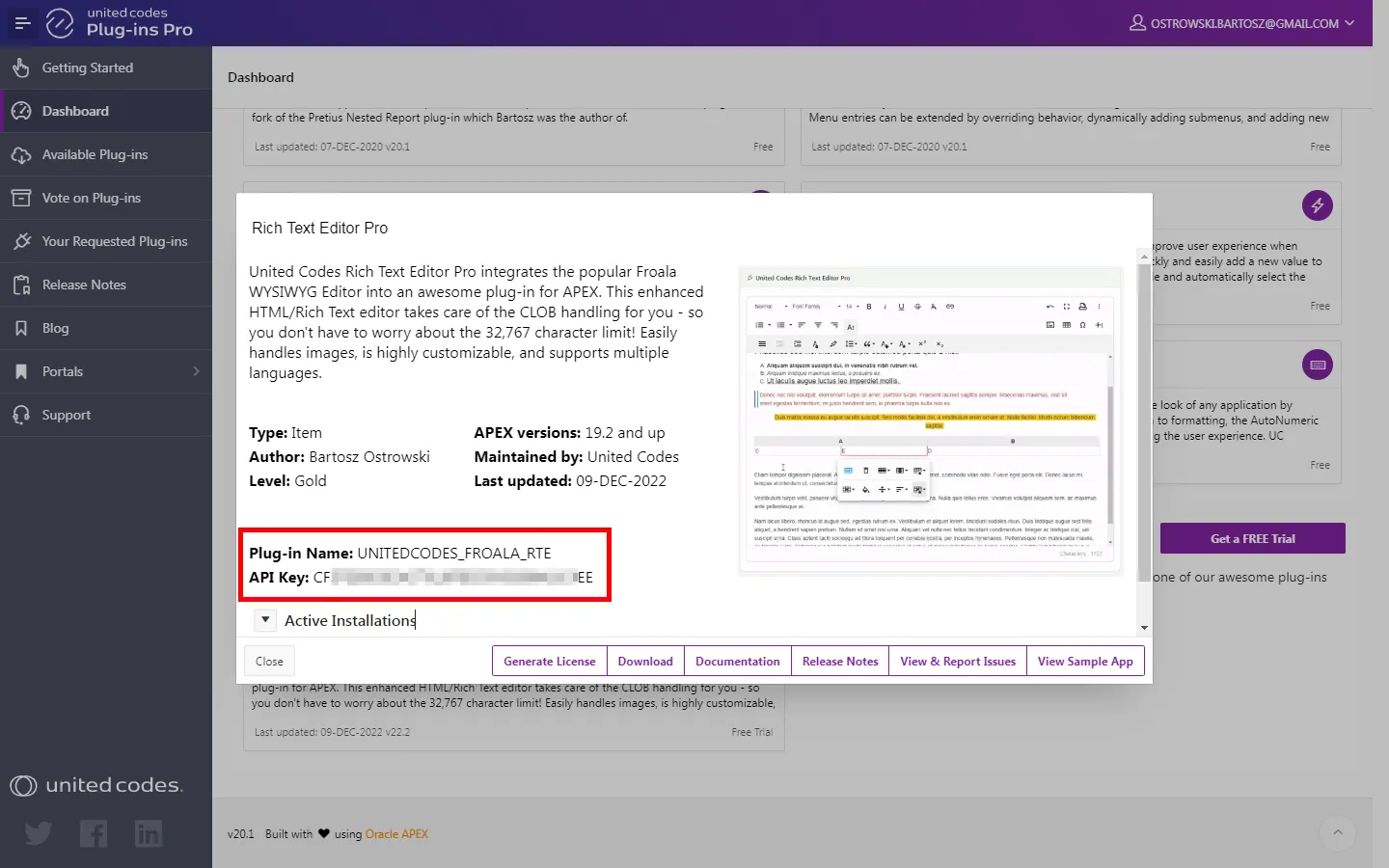
- Proceed to the next step Activate license using PL/SQL code.
Activate license using PL/SQL code
Section titled “Activate license using PL/SQL code”Activating the plug-in license requires executing PL/SQL code in Oracle APEX SQL Workshop / SQL Commands. The plug-in can be activated using two scenarios:
- When Oracle APEX schema has access to the internet
- When Oracle APEX schema has no access to the internet
Schema has access to the internet
Section titled “Schema has access to the internet”When the Oracle APEX schema in which the plug-in is installed has access to the internet, the activation process requires only executing PL/SQL code in Oracle APEX SQL Workshop.
- Go to SQL Workshop / SQL Commands
- Run the
auto_licenseprocedure
begin uc_pluginspro.auto_license( p_plugin => 'PLUGIN_NAME', -- the plug-in name presented in the Plug-ins Pro dashboard modal p_api_key => 'YOUR_API_KEY' -- the plug-in API key presented in the Plug-ins Pro dashboard modal );end;In the result of executing the code, you should see the successful message:
Plug-ins Pro license saved for plug-in: UNITEDCODES_FROALA_RTE.
See the example screenshot below.
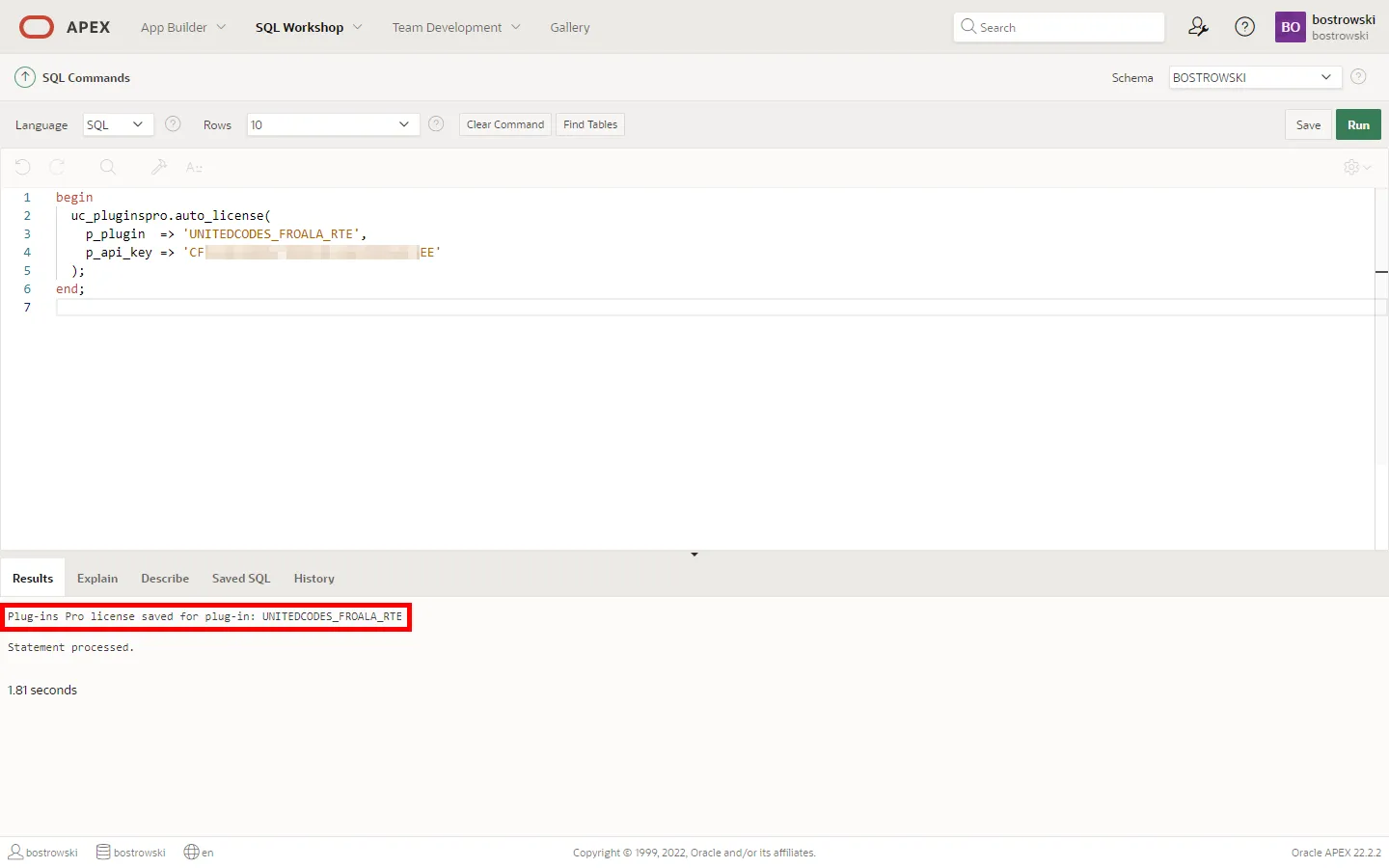
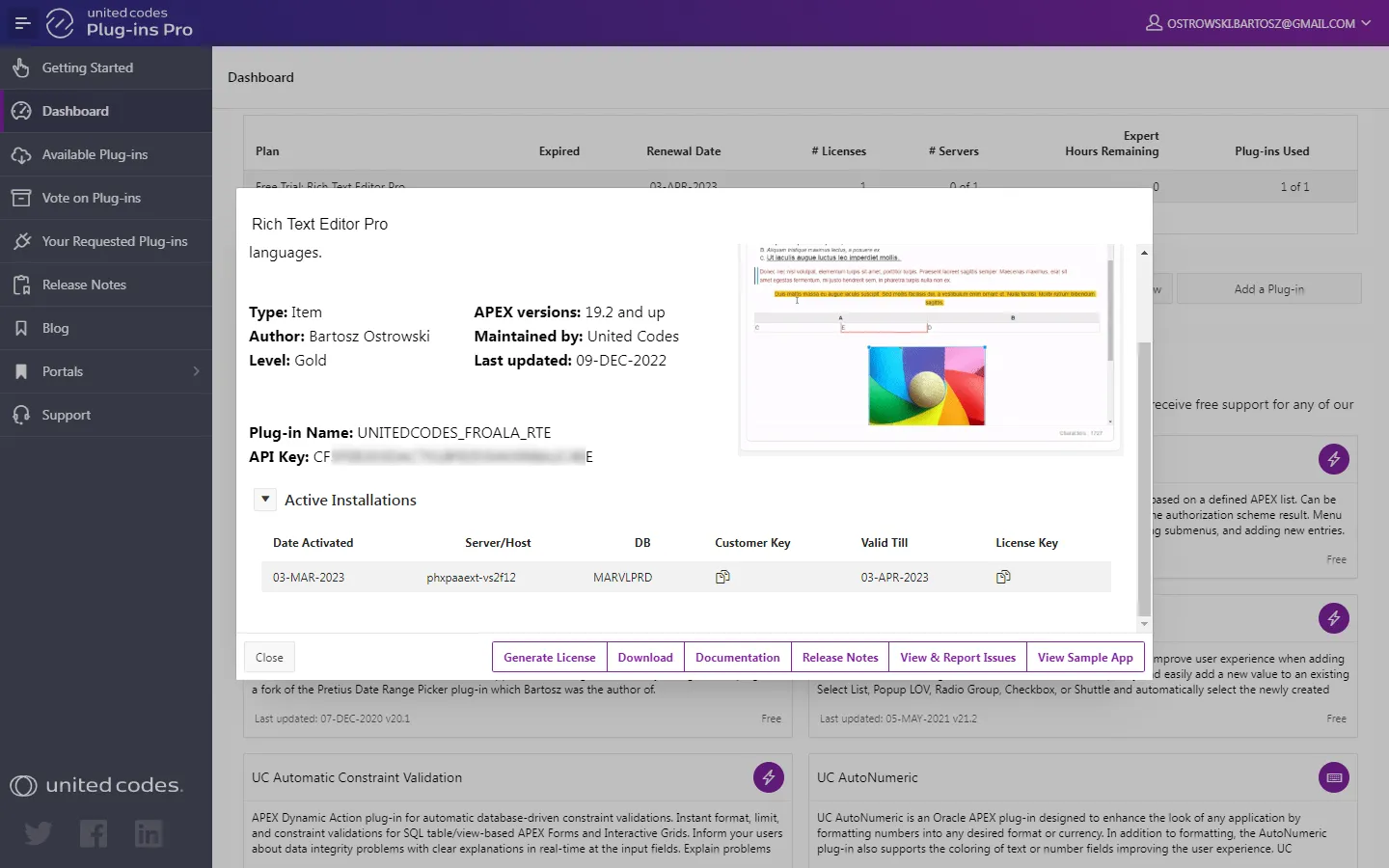
The plug-in has been activated and is ready to use. The successful activation can be checked in the Plug-ins Pro portal. See the screenshot below.
Schema has no access to the internet
Section titled “Schema has no access to the internet”When the Oracle APEX schema in which the plug-in is installed has no access to the internet, the activation process requires executing PL/SQL code and generating the plug-in license in the Plug-ins Pro portal.
Execute manual activation #1
Section titled “Execute manual activation #1”- Go to SQL Workshop / SQL Commands
- Run the
manual_licenseprocedure
begin uc_pluginspro.manual_license( p_plugin => 'PLUGIN_NAME', -- the plug-in name presented in the Plug-ins Pro dashboard modal p_api_key => 'YOUR_API_KEY' -- the plug-in API key presented in the Plug-ins Pro dashboard modal );end;You should see a message with key value. The key is needed to generate a license key in the Plug-ins Pro portal.
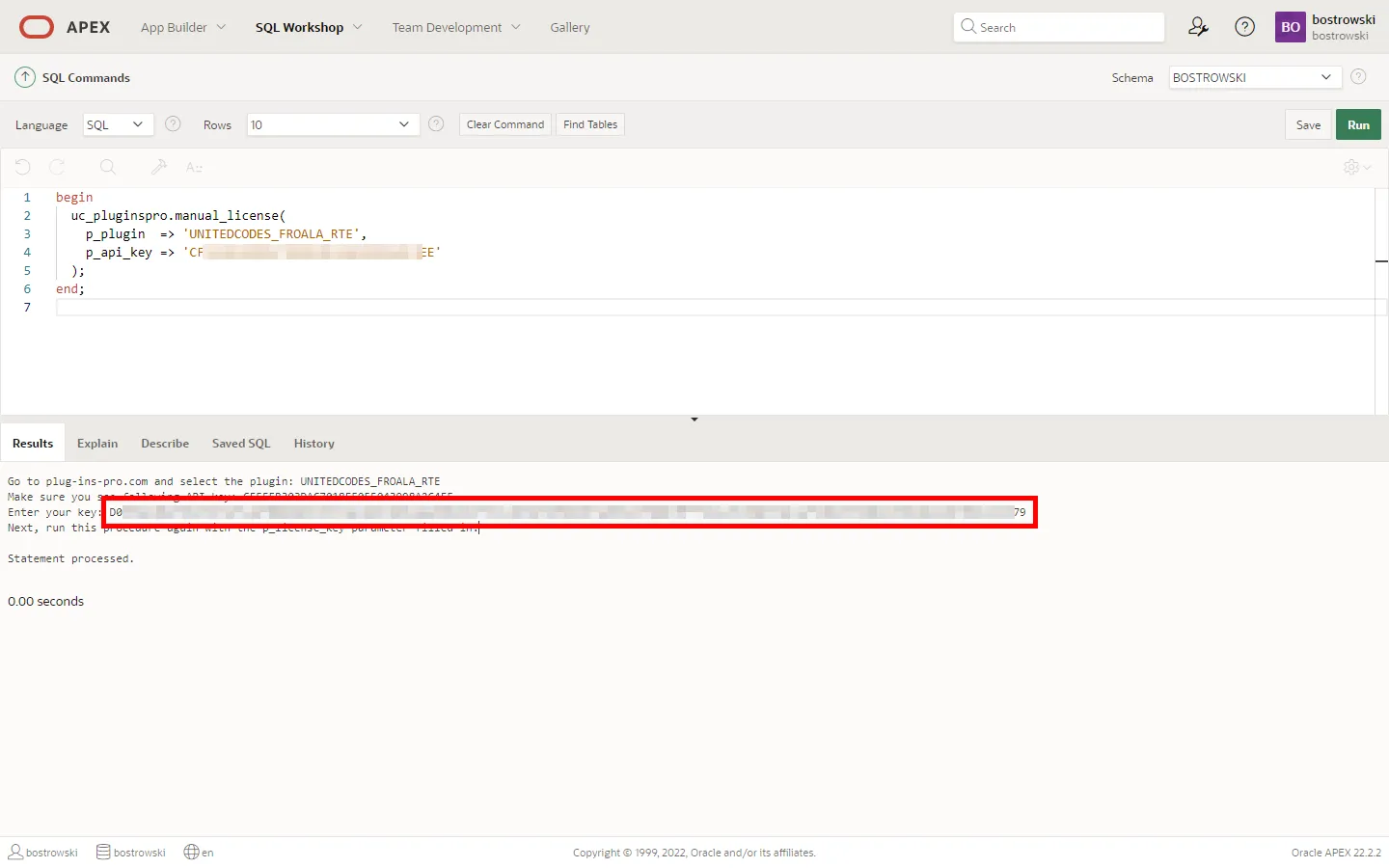
Copy the printed key value and proceed to the next step.
Generate license key in Plug-ins Pro Portal
Section titled “Generate license key in Plug-ins Pro Portal”-
Go to the Plug-ins Pro portal dashboard
-
Click on the Rich Text Editor Pro card
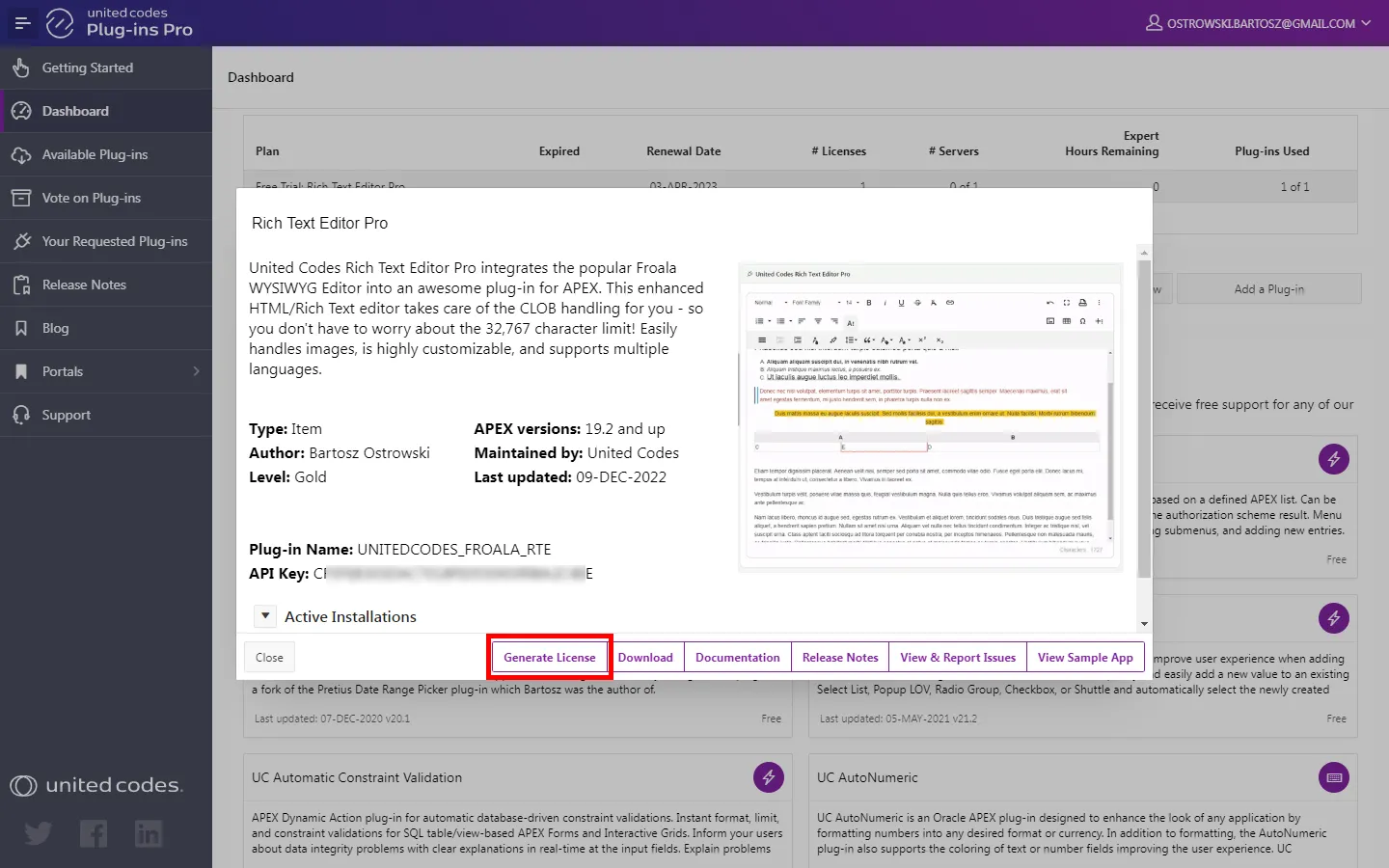
- Click the button Generate license
-
Paste the copied key valuein the new modal window.
-
Click the button Generate license
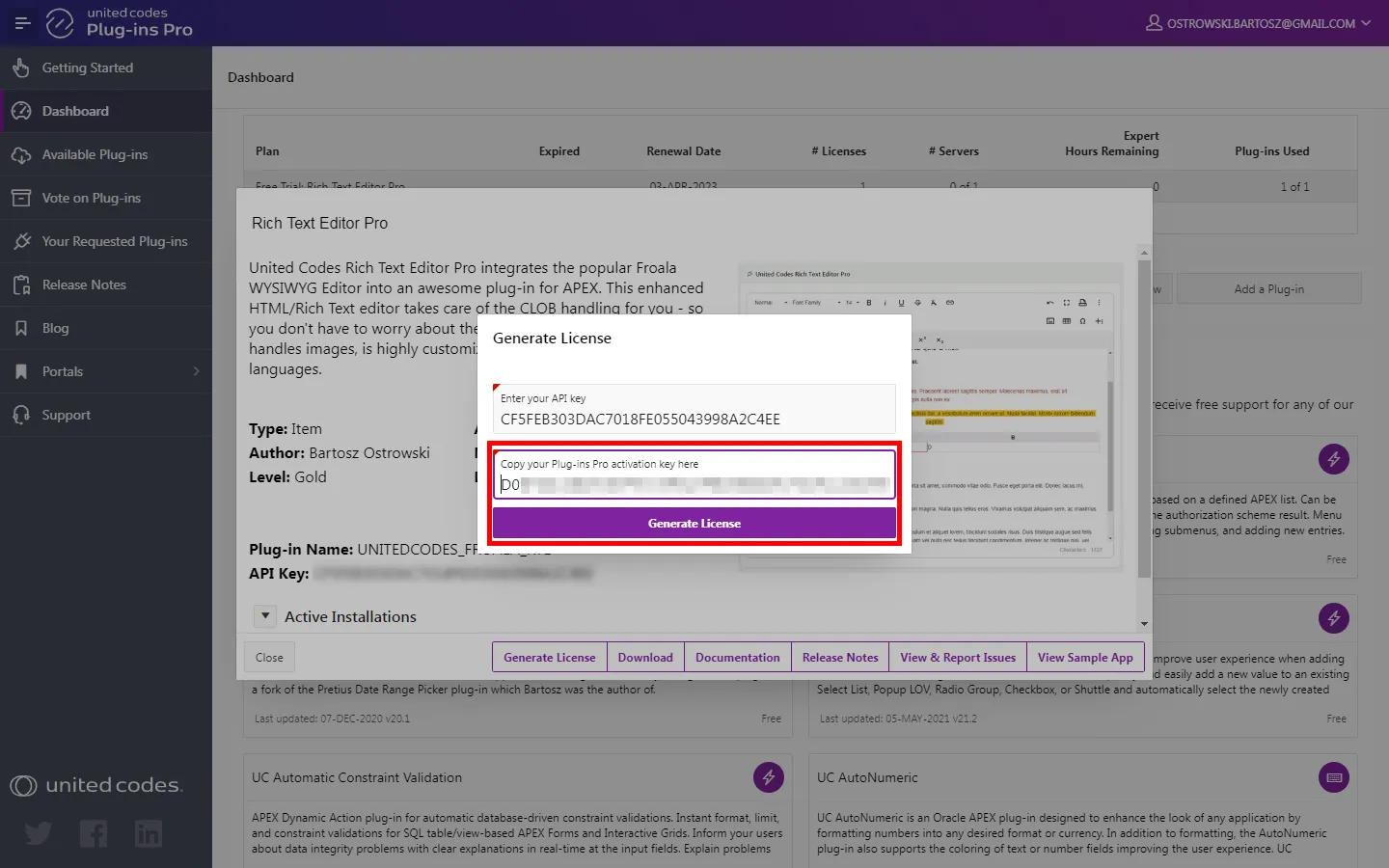
- In the result, the plug-in license key is generated
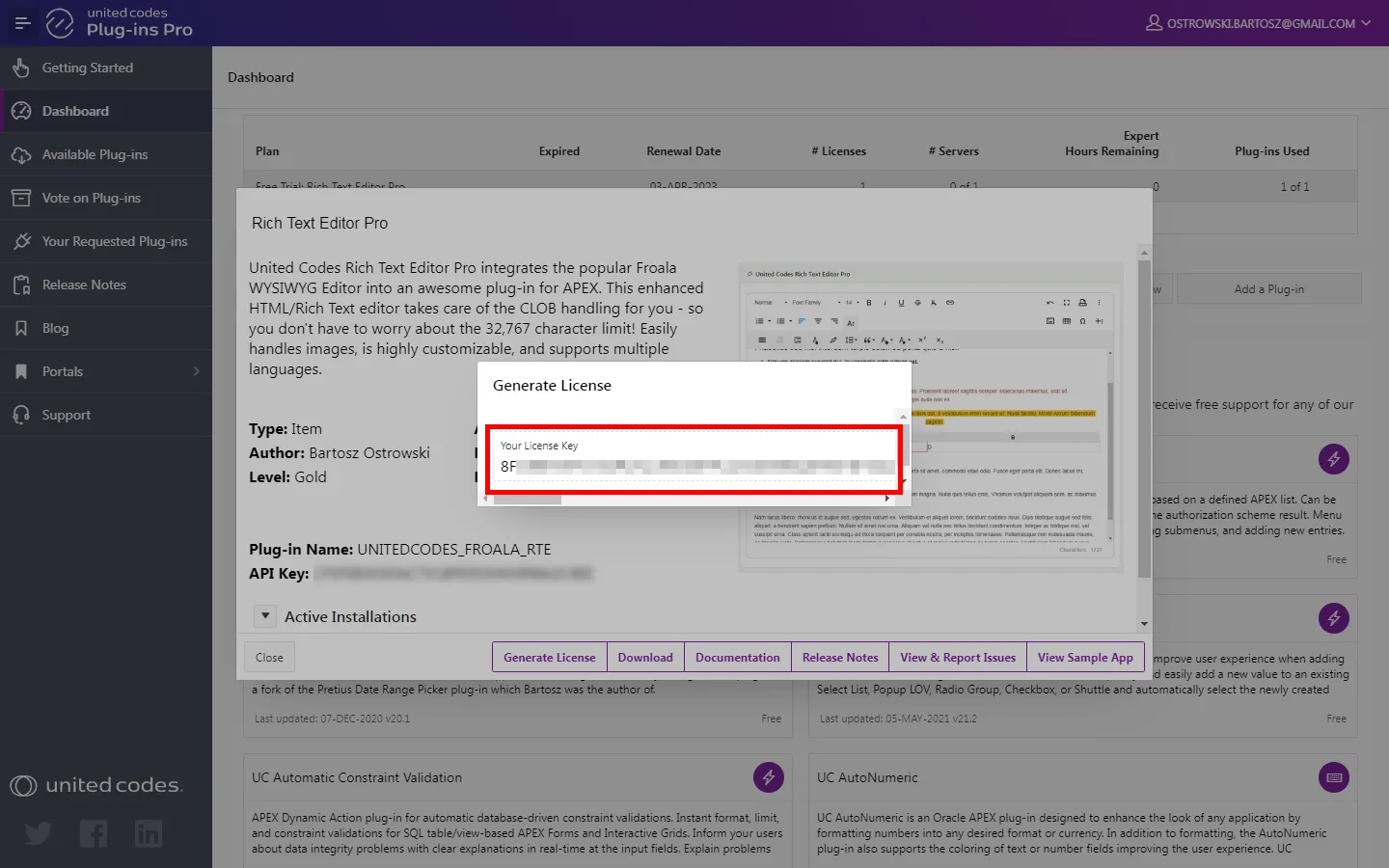
- Copy the generated license key and proceed to the next step.
Execute manual activation #2
Section titled “Execute manual activation #2”- Go back to APEX SQL Commands
- Execute the procedure
manual_licensewith parameterp_license_keyset to copied license key
begin uc_pluginspro.manual_license( p_plugin => 'PLUGIN_NAME', -- the plug-in name presented in the Plug-ins Pro Portal p_api_key => 'YOUR_API_KEY', -- the plug-in API key presented in the Plug-ins Pro Portal p_license_key => 'GENERATED_LICENSE_KEY' -- license key copied from Plug-ins Pro Portal );end;In the result of executing the code, you should see the successful message:
Plug-ins Pro license saved for plug-in: UNITEDCODES_FROALA_RTE
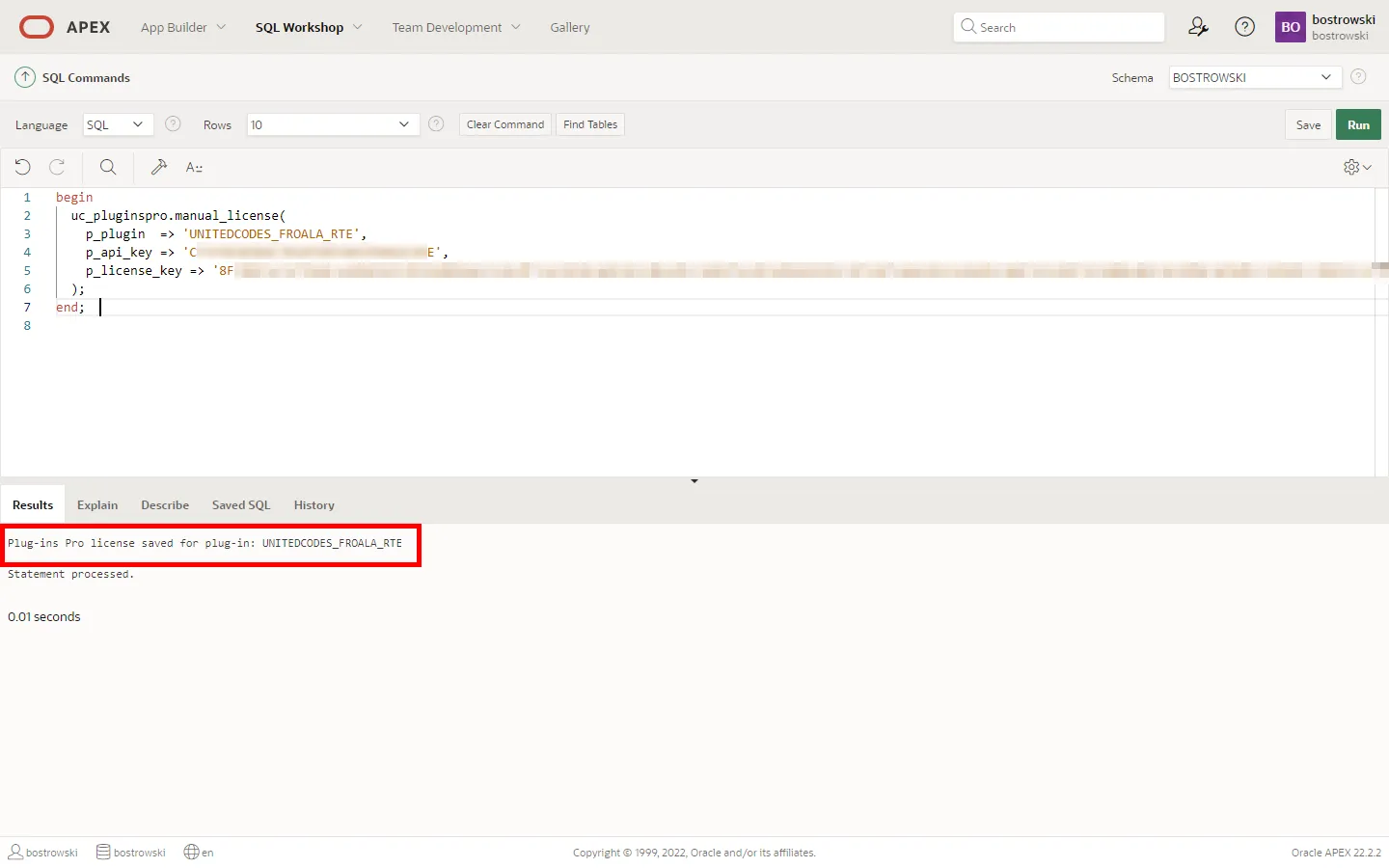
The plug-in has been activated and is ready to use. The successful activation can be checked in the Plug-ins Pro portal. See the screenshot below.