Usage
This section describes an example implementation of Interactive Grid Download File Pro in an example Oracle APEX application.
The usage guide shows the basic implementation of the plug-in and doesn’t describe the plug-in attributes.
Introduction
Section titled “Introduction”This usage guide is using the Interactive Grid Download File Pro sample application table, UC/_IG/_DOWNLOAD. Table columns are described in the table below:
| Column Name | Data Type | Description |
|---|---|---|
| ID | NUMBER | Primary key |
| FILE/_CONTENT | BLOB | Content of a file |
| MIME/_TYPE | VARCHAR2(100) | The mime type of a file |
| FILE/_NAME | VARCHAR2(50) | The filename of a file |
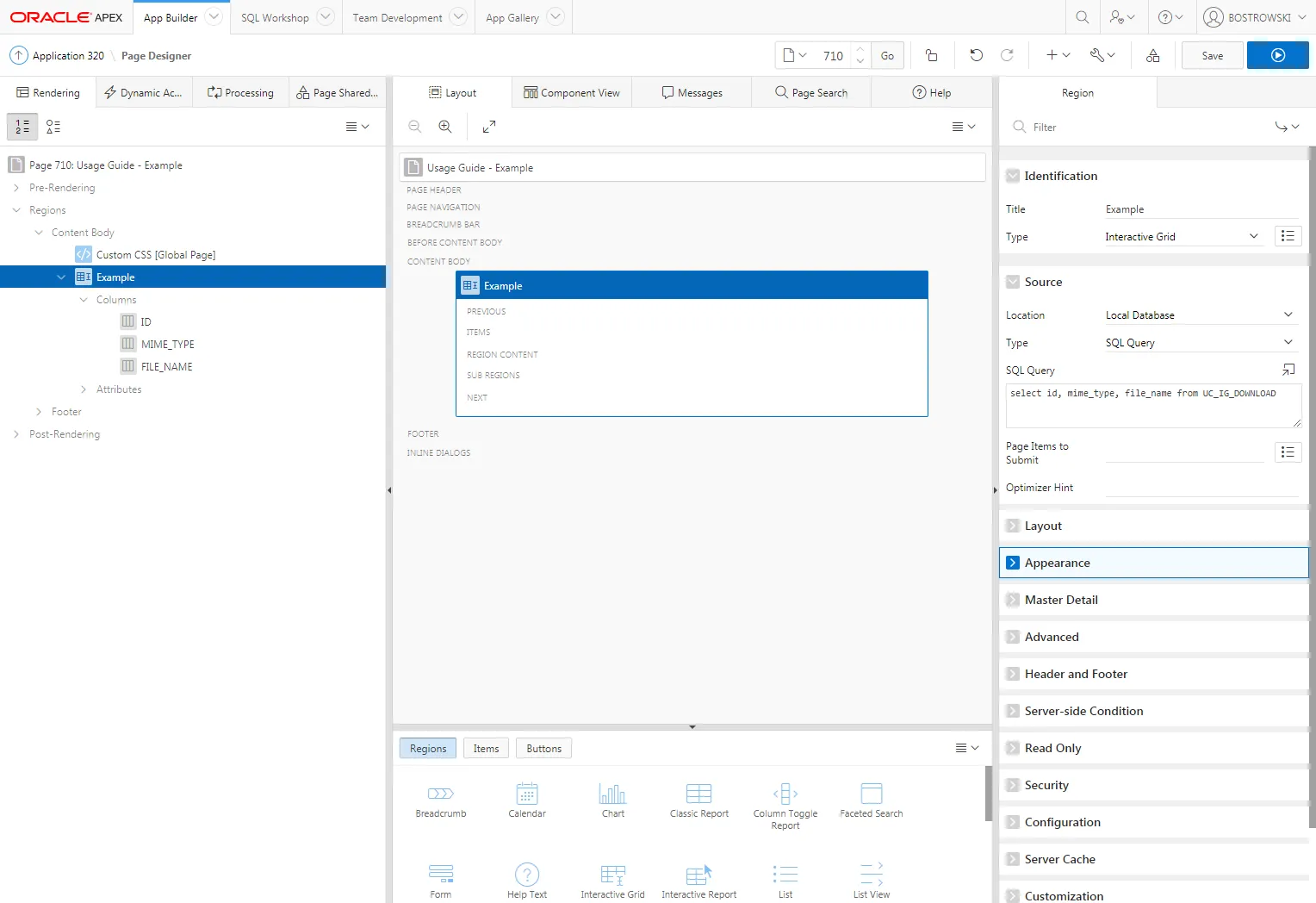
In the example application, page 710 is defined. On the page, an interactive grid region called Example is created and contains three columns:
- ID
- MIME/_TYPE
- FILE/_NAME
All columns are Display Only and the interactive grid doesn’t support editing. This usage guide will lead you through the process of creating the 4th column which will be using the plug-in to download a file stored in the FILE/_CONTENT column.
The initial state of page 710 in page designer is presented below:
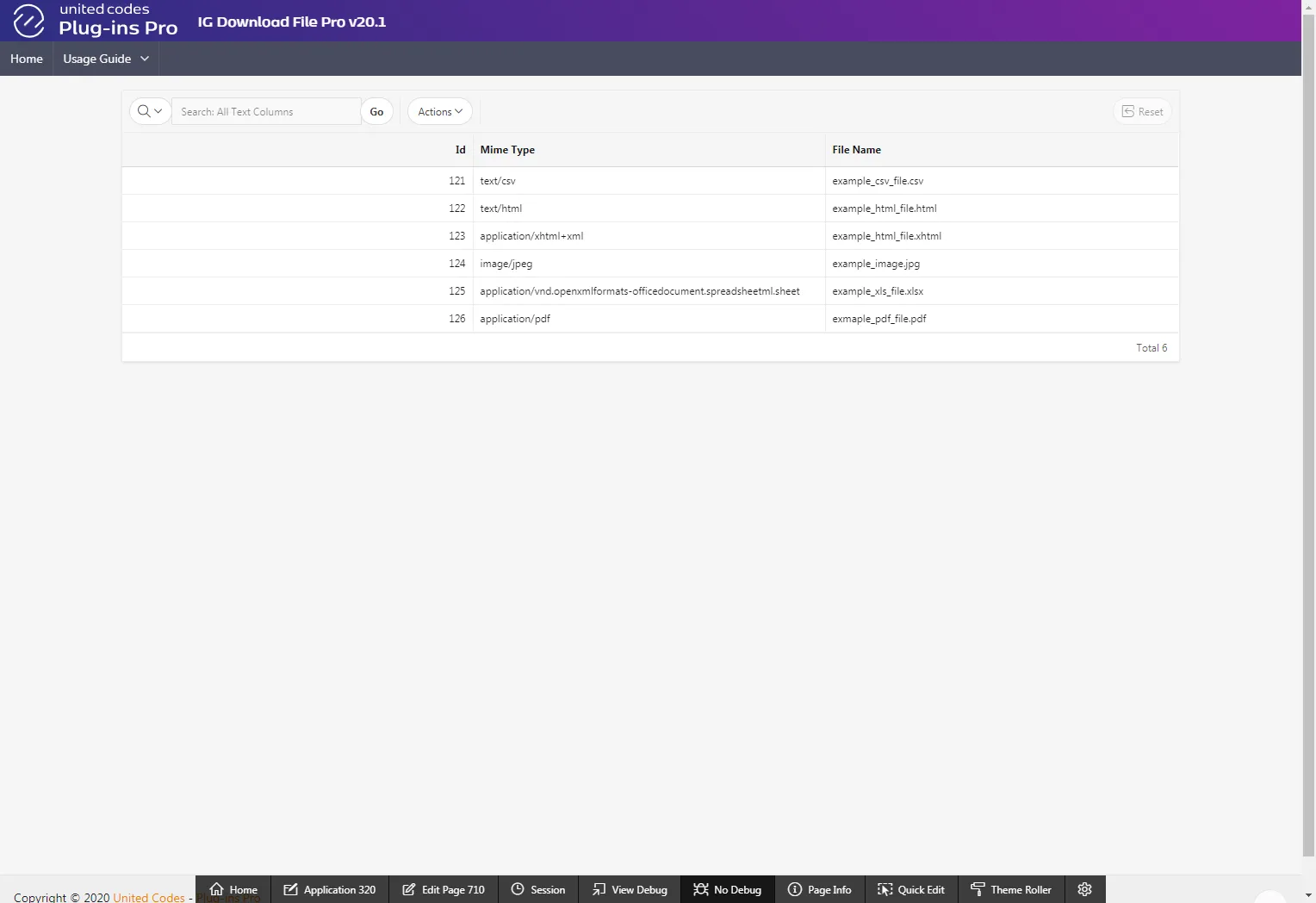
The page will look like the following:
Implementing the plug-in
Section titled “Implementing the plug-in”To implement the plug-in you will need to create a new interactive grid column and a dynamic action implementing the plug-in.
Create an interactive grid column
Section titled “Create an interactive grid column”-
In page designer, right-click on Columns in the interactive grid
-
Click Create Column
-
For the newly created column:
-
Set Identification // Column Name to DOWNLOAD
-
Set Identification // Type to Link
-
Set Heading // Heading to Download
-
In the Link section, click on the button No Link Defined
-
In the popup Link Builder - Target
-
Set Target // Type to URL
-
Set Target // URL to javascript: void(0);
-
Apply the changes by clicking OK button
-
-
Set Link // Link Text to Download
-
Set Link // Link Attributes to class=”download”
-
Set Source // Type to None
-
-
Save the page
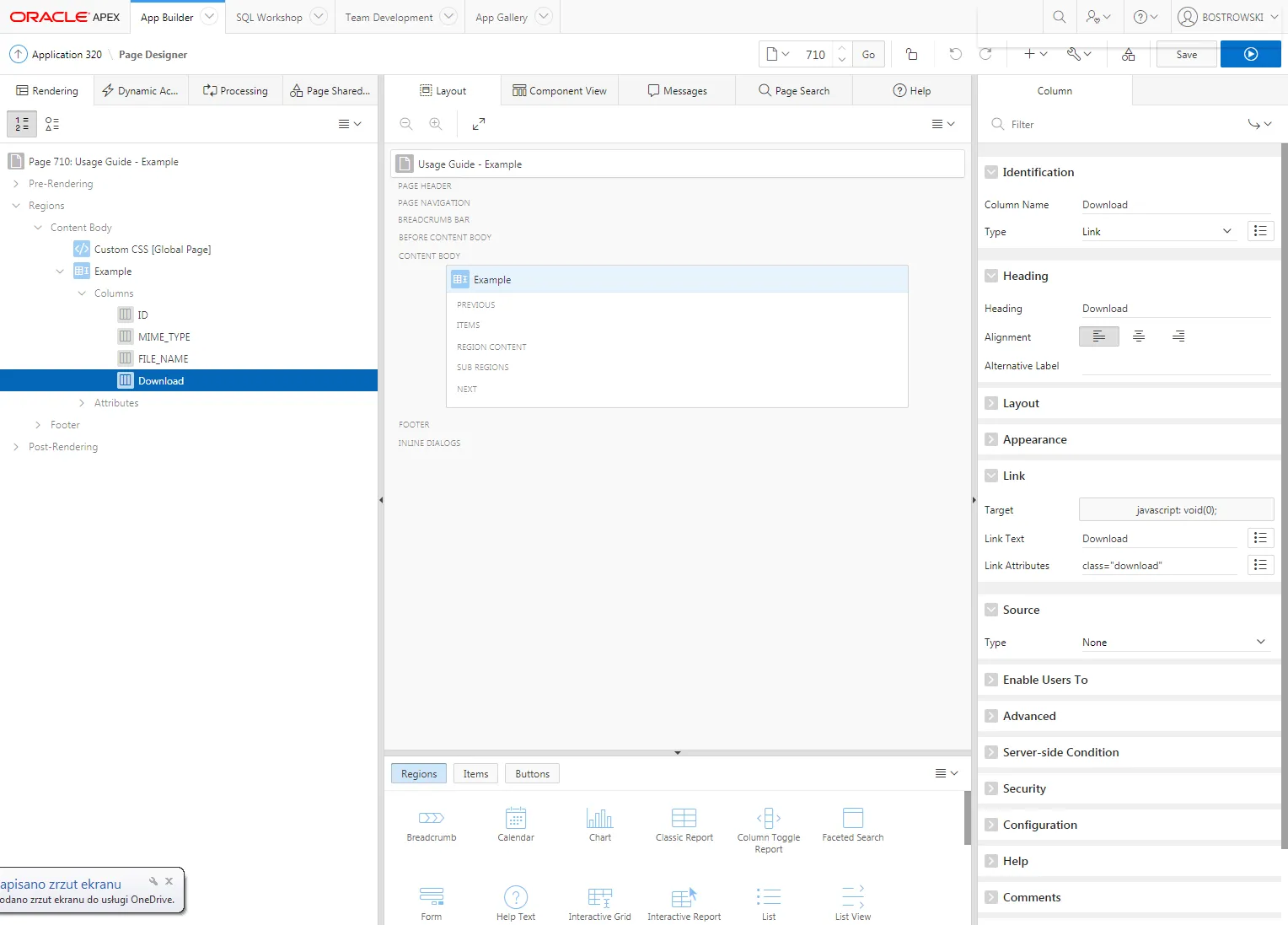
The newly created column definition in page designer is presented below:
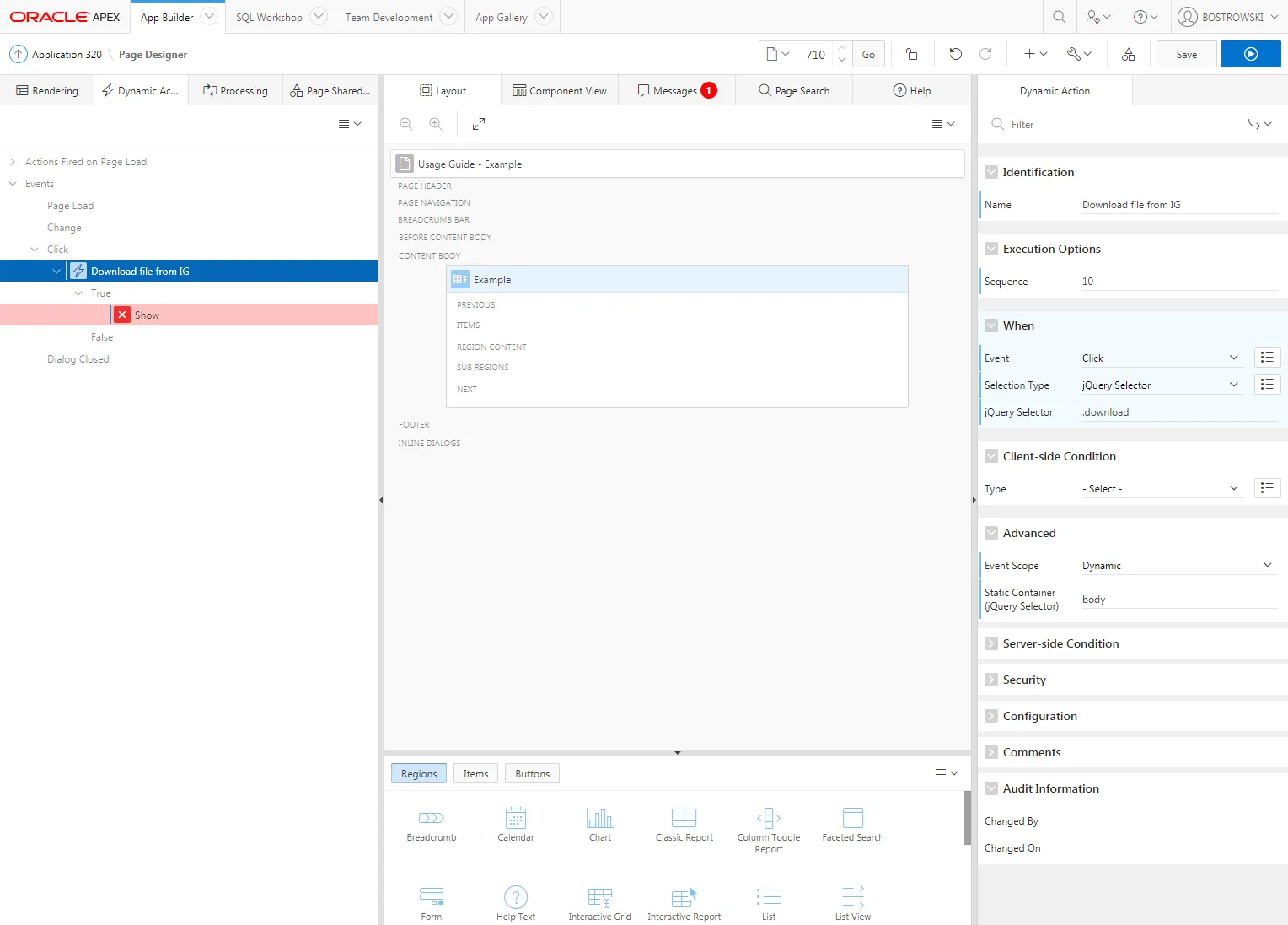
Dynamic Action
Section titled “Dynamic Action”-
Create new dynamic action called Download file from IG
-
Set When // Event to Click
-
Set When // Selection Type to jQuery Selector
-
Set When // jQuery Selector to .download
-
Set Advanced // Event Scope to dynamic
-
Set Advanced // Static Container (jQuery Selector) to body
The dynamic action definition in the page designer is presented below:
Dynamic Action - True Action
Section titled “Dynamic Action - True Action”-
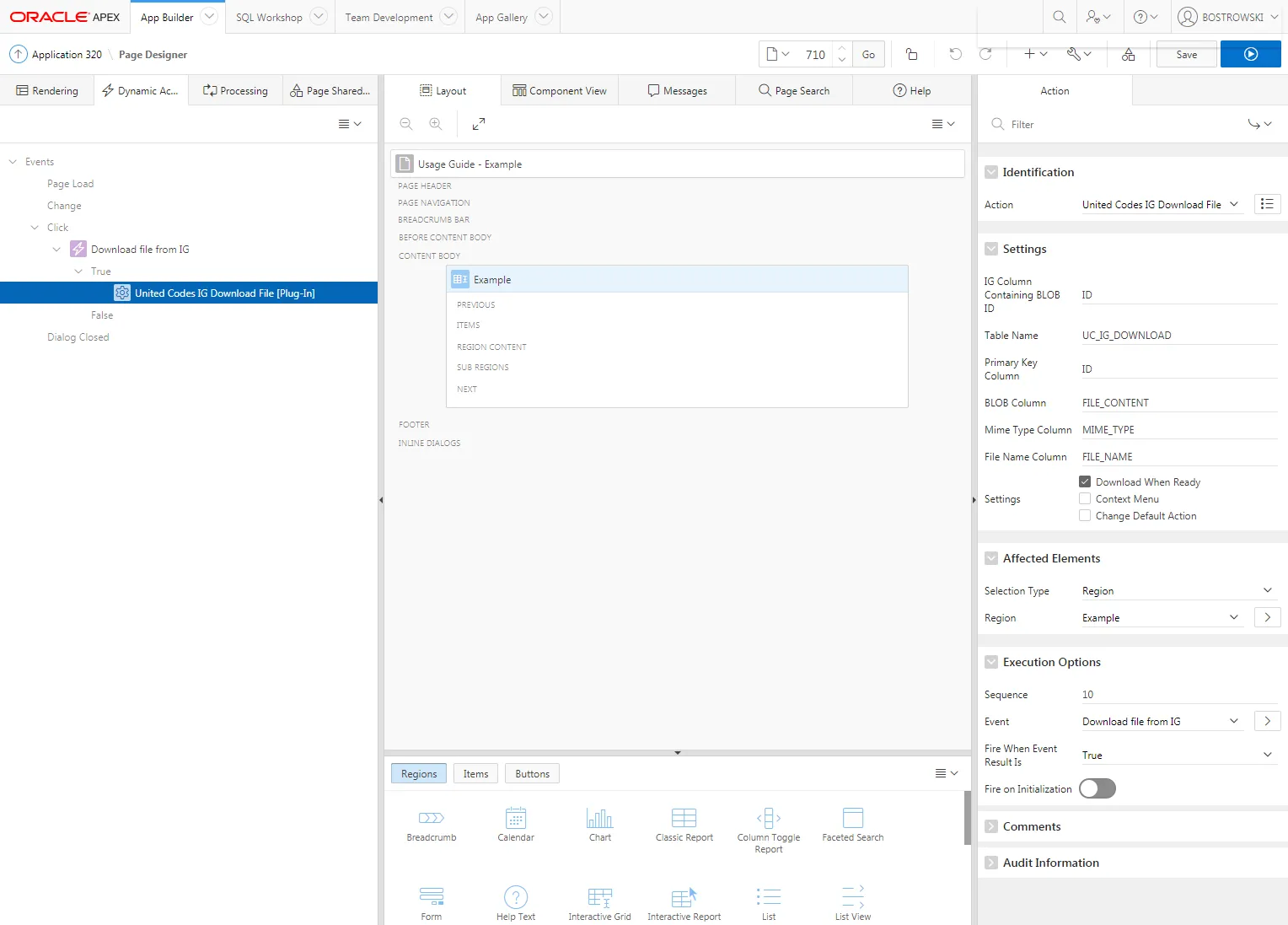
Change the true action Show to United Codes IG Download File /[plug-in/]
-
Set the plug-in attributes
-
Set Settings // IG Column Containing BLOB ID to ID
-
Set Settings // Table Name to UC/_IG/_DOWNLOAD
-
Set Settings // Primary Key Column to ID
-
Set Settings // BLOB Column to FILE/_CONTENT
-
Set Settings // Mime Type Column to MIME/_TYPE
-
Set Settings // File Name Column to FILE/_NAME
-
(Optional) Set Settings // Settings according to your requirements
-
-
Set Affected Elements // Selection Type to Region
-
Set Affected Elements // Region to Example
-
Set Fire on Initialization to No
-
Save the page
The true action is presented below:
Test the Implementation
Section titled “Test the Implementation”-
Open page 710 in a browser
-
Click on the Download anchor
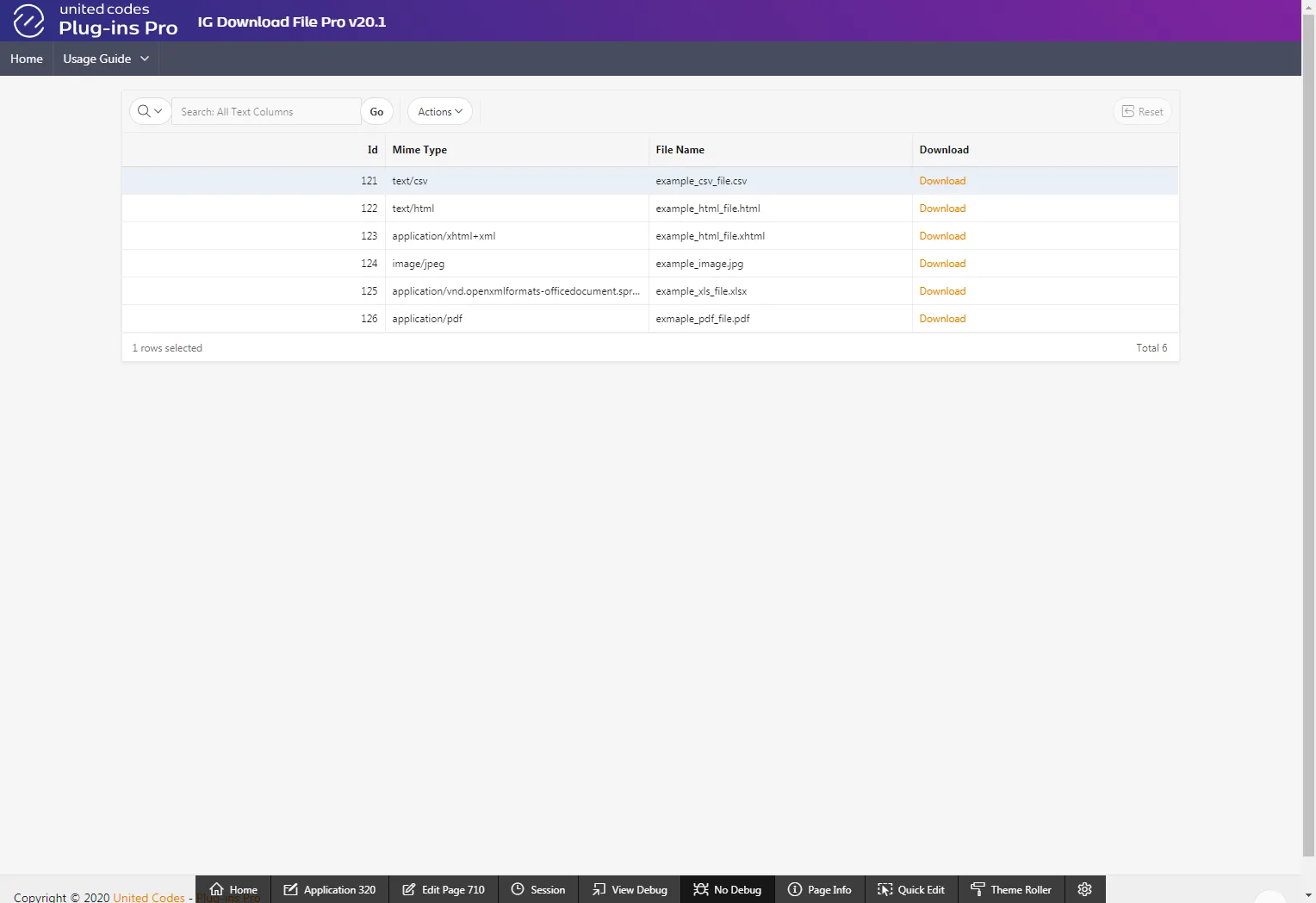
Page 710 after adding a new column is presented below. Clicking on the “Download” link will initialize the download process.