
JavaScript
Options listed below can be set using the plug-in page item attribute Initialization JavaScript Code, or using supporting dynamic action plug-in Initialization JavaScript Code.
function( pOptions ){ pOptions.optionName = optionValue; return pOptions;}Tooblar buttons
Section titled “Tooblar buttons”The table below presents list of button ids available to configure the plug-in custom toolbar.
| Button ID | Description |
|---|---|
| fullscreen | Opens editor’s fullscreen view. |
| getPDF | Converts HTML document into PDF file. |
| help | Opens popup with shortcuts definable using option helpSets. |
| html | Previews a document’s HTML. |
| Opens a current document in a browser print window. | |
| redo | Redo most recent change in a document. |
| selectAll | Selects all document contents. |
| undo | Undo most recent change in a document. |
| Button ID | Description |
|---|---|
| align | Dropdown menu with alignment options to be applied to the current cusor position. |
| alignCenter | Apply center alignment for the current cursor position. |
| alignJustify | Apply justify alignment for the current cursor position. |
| alignLeft | Apply left alignment for the current cursor position. |
| alignRight | Apply right alignment for the current cursor position. |
| fontFamily | List of font families defined by the option fontFamily. |
| fontSize | List of font sizes defined by the option fontsize. |
| formatOL | Dropdown of ordered lists (number, lower alpha, lower greek, lower roman, upper alpha, upper roman). |
| formatOLSimple | Apply number ordered list to the current cursor position. |
| formatUL | Apply unordered list to the current cursor position. |
| indent | Indents currently focused paragraph.. |
| lineHeight | List of line heights defined by the option lineHeights. |
| outdent | Outdents a currently focused paragraph. |
| paragraphFormat | Opens dropdown list of available paragraph formats defined with option paragraphformat. |
| paragraphStyle | Opens dropdown list of available paragraph styles defined with option paragraphStyles. |
| quote | A currently focused paragraph is converted to blockquote with possibility to indent or outdent. |
| Button ID | Description |
|---|---|
| emoticons | Opens popup with emoticons. |
| fontAwesome | Opens popup with fontAwesome icons. |
| insertImage | Opens popup for inserting images. |
| insertLink | Opens popup to create a link for selected text. |
| insertTable | Opens popup creating HTML table. |
| specialCharacters | Opens popup with special characters defined with option specialCharactersSets. |
| Button ID | Description |
|---|---|
| backgroundColor | Opens popup with background colors defined with the option colorsBackground. |
| bold | Makes the selected text bold. |
| clearFormatting | Clear formatting of the currently selected text |
| inlineClass | Opens dropdown list of available inline classes defined with option inlineClasses. |
| inlineStyle | Opens dropdown list of available inline styles defined with option inlinestyles. |
| insertHR | Insert horintoal line </hr>. |
| italic | Makes the selected text italic. |
| strikeThrough | Makes the selected text crossed out. |
| subscript | Makes the selected text subscript. |
| superscript | Makes the selected text supscript. |
| textColor | Opens popup with colors defined with the option colorsText. |
| Button ID | Description |
|---|---|
| imageManager | Opens the plug-in image browser. |
| insertFile | Not yet supported, requires custom RESTful service handler. |
The toolbar can use horizontal - or vertical | separators.
Toolbar definition
Section titled “Toolbar definition”Editor’s custom toolbar can be defined using JSON object describing toolbar groups or an Array of buttons.
The JSON allows defining four (optional) groups paragraph, text, rich and misc with possibility to align a group to left or right, and display specified number of buttons (hidden buttons can be expanded).
On the other hand, the array implementation is simple array of button ids, and renders buttons from let to right (or right to left when RTL is enabled).
:::tip responsive toolbar
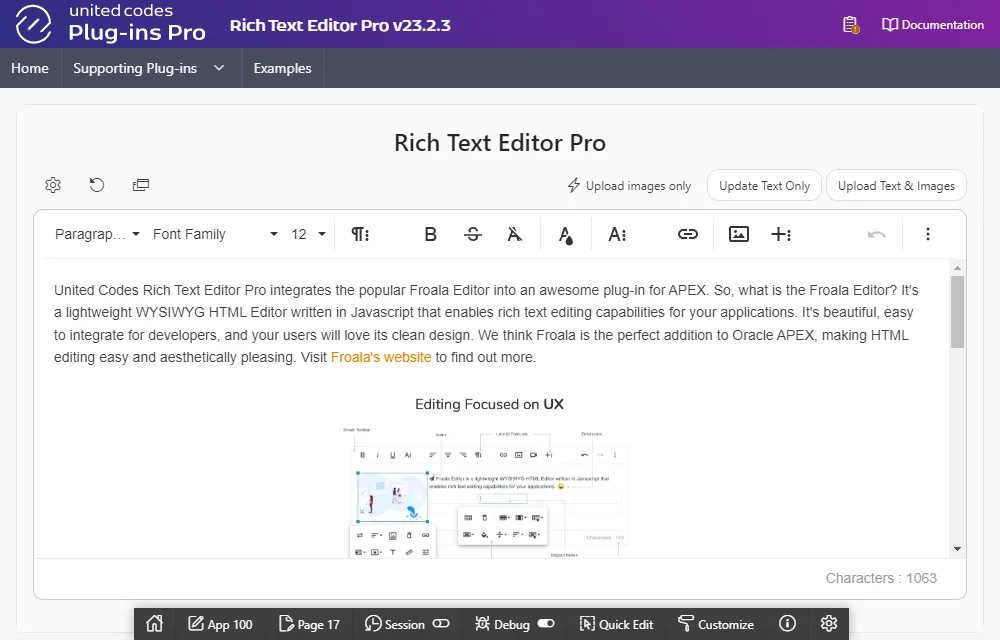
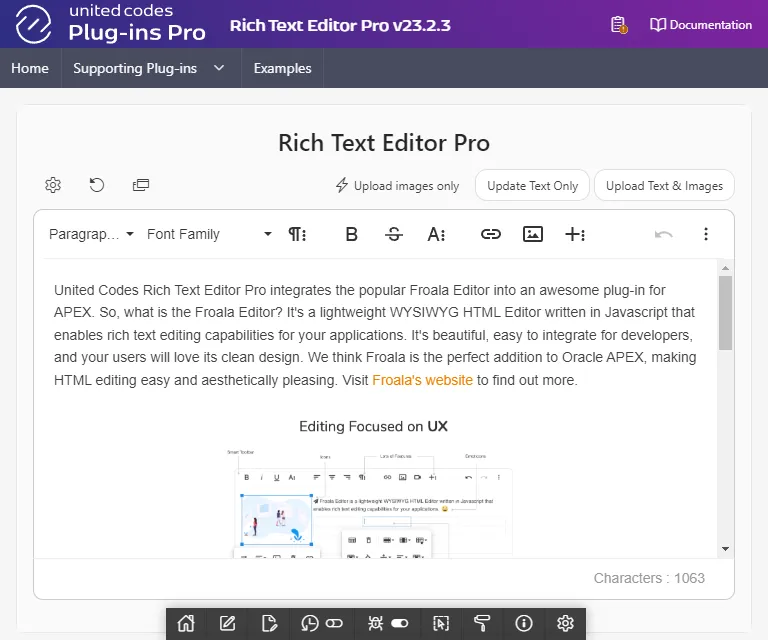
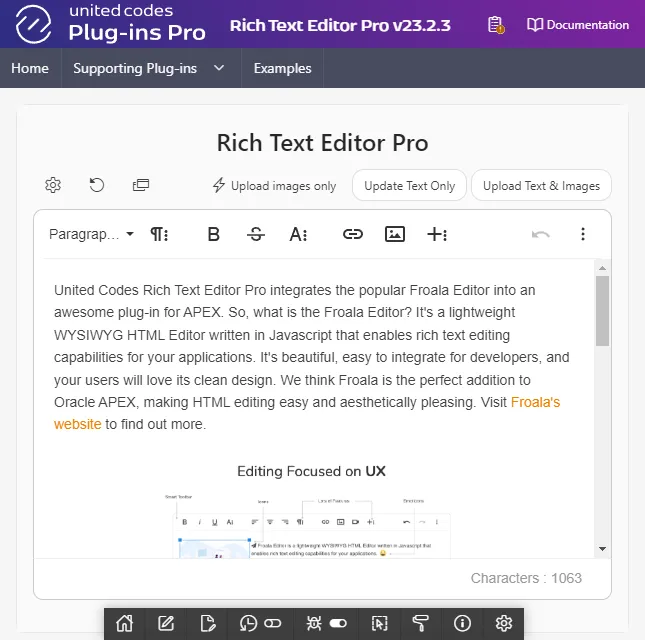
Using options toolbarButtons, toolbarButtonsMD, toolbarButtonsSM, and toolbarButtonsXS, a developer can specify different toolbar configurations dependent on a browser width.
:::
The toolbar JSON object must implement properties described in the table below to specify what toolbar groups are available.
| Property | Type | Description |
|---|---|---|
| moreParagraph | JSON | Object describes group paragraph. |
| moreText | JSON | Object describes group text. |
| moreRich | JSON | Object describes group rich. |
| moreMisc | JSON | Object describes group misc. |
Each group must implement properties described in the table below defining what buttons are assigned to specific group, how group is aligned, and how many buttons is visible - buttons exceeding a given number are hidden in expandable toolbar.
| Property | Type | Description |
|---|---|---|
| buttons | Array | Array of button ids to be rendered in the group. |
| align | String | The aligment of the group, valid valuses are left and right. |
| buttonsVisible | Number | The number of buttons to be visible without expanding the group. |
:::tip Group usage
The toolbar doesn’t have to implement all four groups. For example, buttons can be displayed in two groups aligned left and right.
:::
The JavaScript below presents the plug-in default configuration for responsive toolbar. Options toolbarButtonsMD, toolbarButtonsSM and toolbarButtonsXS inherits the toolbar definition specified for option toolbarButtons. Lastly number of visible buttons is adjusted depending for a current browser width.
function( pOptions ){  pOptions.toolbarButtonsMD = $.extend(true, {}, pOptions.toolbarButtons);  pOptions.toolbarButtonsSM = $.extend(true, {}, pOptions.toolbarButtons);  pOptions.toolbarButtonsXS = $.extend(true, {}, pOptions.toolbarButtons);
  pOptions.toolbarButtonsMD.moreParagraph.buttonsVisible = 3;  pOptions.toolbarButtonsMD.moreText.buttonsVisible = 4;  pOptions.toolbarButtonsMD.moreRich.buttonsVisible = 2;  pOptions.toolbarButtonsMD.moreMisc.buttonsVisible = 1;
  pOptions.toolbarButtonsSM.moreParagraph.buttonsVisible = 2;  pOptions.toolbarButtonsSM.moreText.buttonsVisible = 2;  pOptions.toolbarButtonsSM.moreRich.buttonsVisible = 2;  pOptions.toolbarButtonsSM.moreMisc.buttonsVisible = 1;
  pOptions.toolbarButtonsXS.moreParagraph.buttonsVisible = 1;  pOptions.toolbarButtonsXS.moreText.buttonsVisible = 2;  pOptions.toolbarButtonsXS.moreRich.buttonsVisible = 2;  pOptions.toolbarButtonsXS.moreMisc.buttonsVisible = 0;
  for ( var toolbar of ["toolbarButtonsXS", "toolbarButtonsSM"]) {    for ( var group of [ "moreParagraph", "moreText", "moreRich", "moreMisc"] ) {      do {        pOptions[toolbar][group].buttons.splice( pOptions[toolbar][group].buttons.indexOf('|'), 1 );      } while( pOptions[toolbar][group].buttons.indexOf('|') > -1 )
    }  }
  return pOptions;}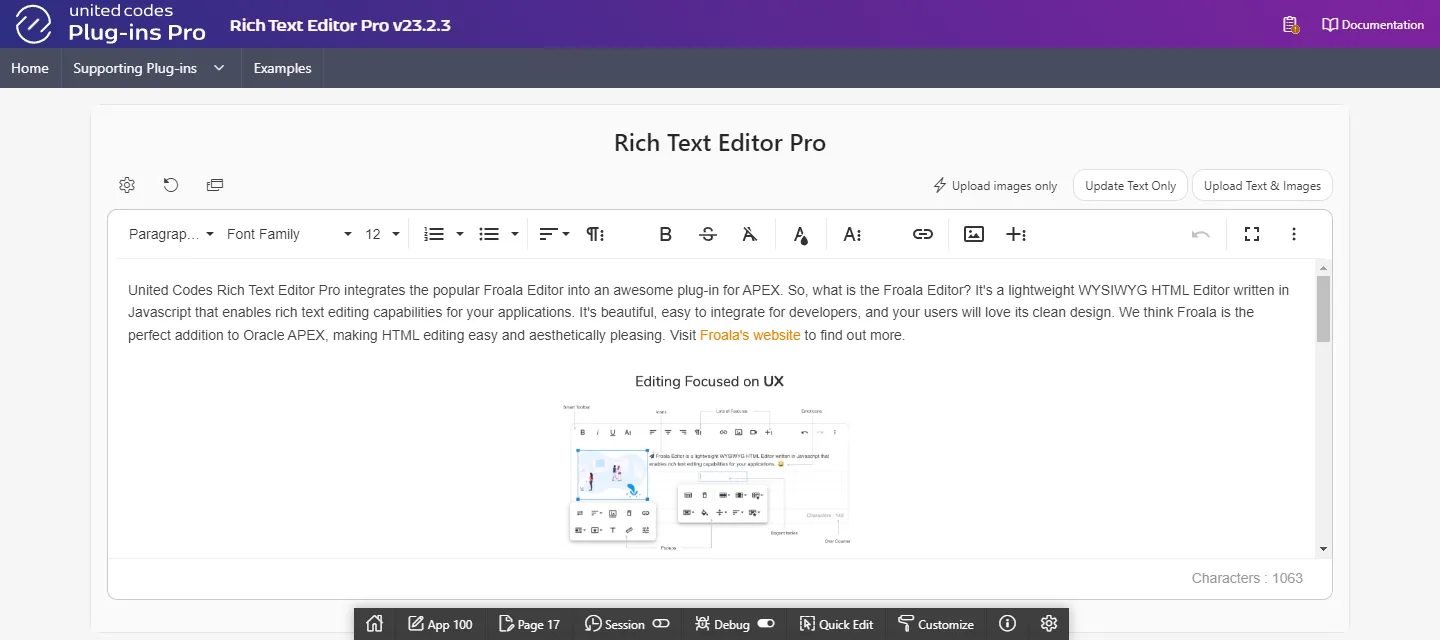
:::tip Hint on responsive toolbar group buttons
Not only a number of visible buttons can be adjusted for different browser widths. If needed, the group buttons can be re-assigned to show only crucial buttons and hide less important in expandable hidden toolbar. To implement such behavior, the group property buttons must be redefined.
:::
Definining toolbar buttons as simple array is simple and fast, buttons are aligned to left or right depending on RTL support. Definining
Static
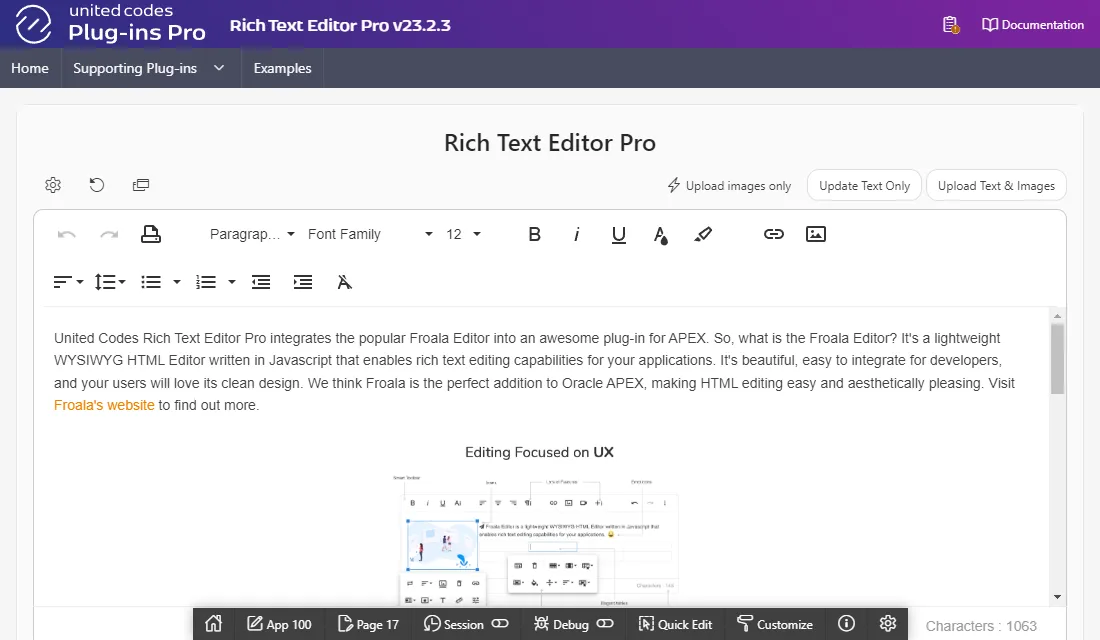
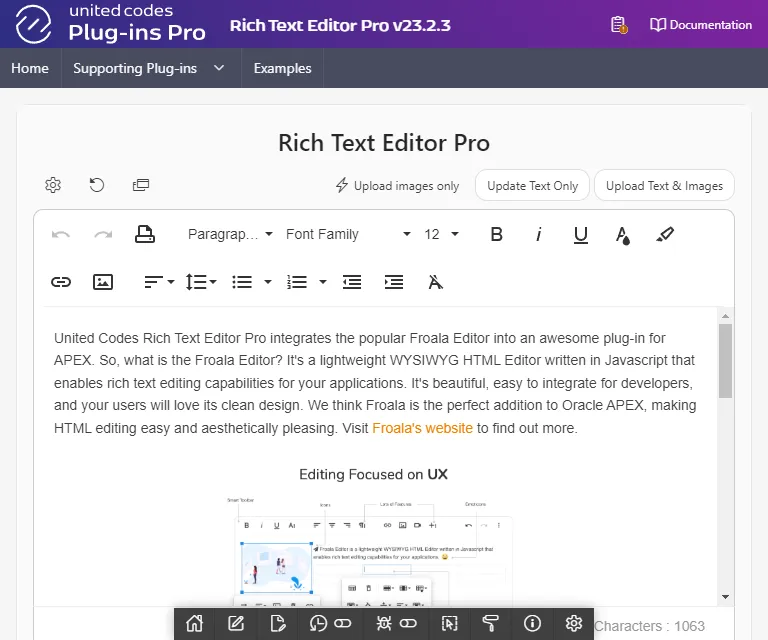
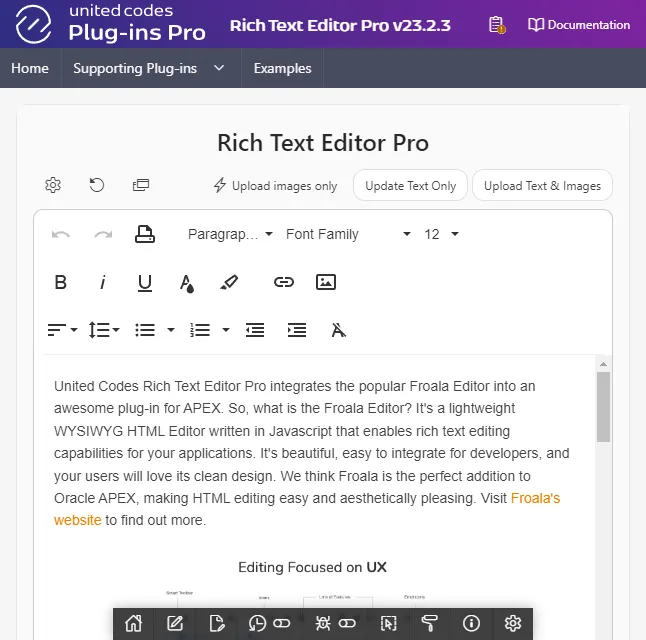
Section titled “Static”When the plug-in is not configured to use responsive toolbar options, and toolbar buttons don’t fit in one line, then buttons are rendered one under another.
function( pOptions ) {  pOptions.toolbarButtons = [ 'undo', 'redo', 'print', '|', 'paragraphFormat', 'fontFamily', 'fontSize', '|', 'bold', 'italic', 'underline', 'textColor', 'backgroundColor', '|', 'insertLink', 'insertImage', '|', 'align', 'lineHeight', 'formatUL', 'formatOL', 'outdent', 'indent', 'clearFormatting']
  pOptions.toolbarButtonsMD = pOptions.toolbarButtons;  pOptions.toolbarButtonsXS = pOptions.toolbarButtons;  pOptions.toolbarButtonsSM = pOptions.toolbarButtons;  return pOptions;}
Responsive
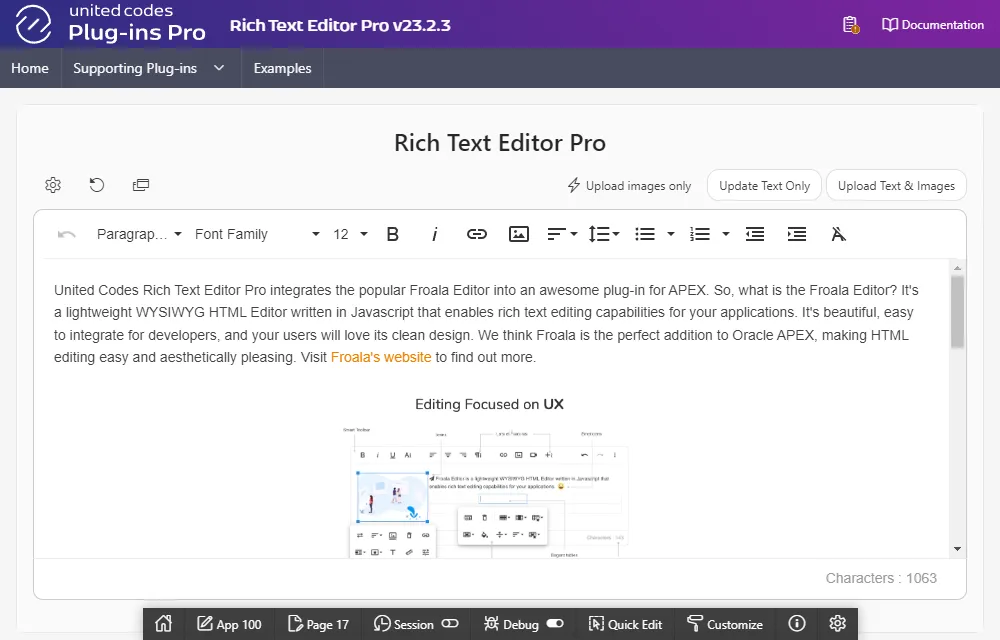
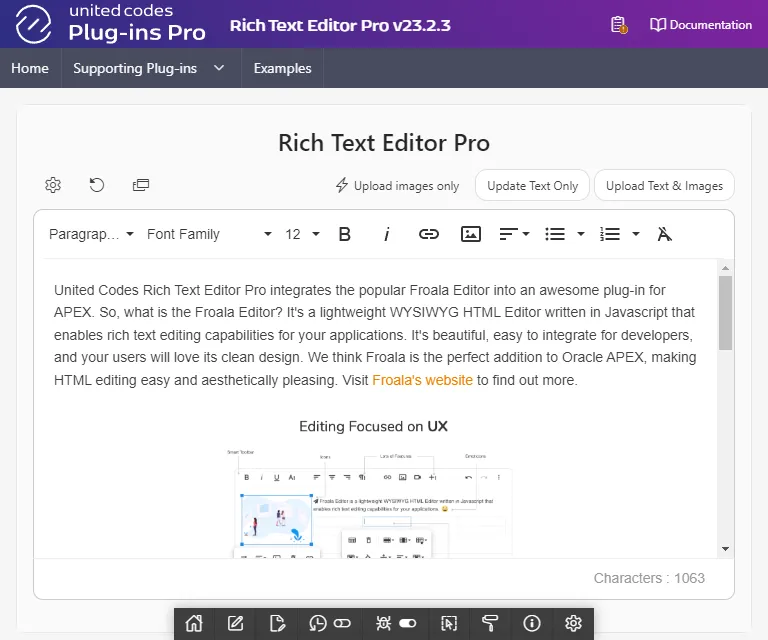
Section titled “Responsive”When the plug-in is configured to use responsive toolbar options toolbarButtonsMD, toolbarButtonsSM, and toolbarButtonsXS, the toolbar buttons available to the end-user differs depending on the browser width.
The example code below removes buttons from toolbar depending on a browser current width. The JSON object named removed defines buttons to be removed depending on toolbar option named used to render the toolbar.
function( pOptions ) {  var    defaultButtons  = [ 'undo', 'redo', 'print', '|', 'paragraphFormat', 'fontFamily', 'fontSize', '|', 'bold', 'italic', 'underline', 'textColor', 'backgroundColor', '|', 'insertLink', 'insertImage', '|', 'align', 'lineHeight', 'formatUL', 'formatOL', 'outdent', 'indent', 'clearFormatting'],    //highlight-start    remove = {      // define toolbar for browser width less than 1200px and larger than 992px      "toolbarButtonsMD": [ "redo", "print", "underline", "textColor", "backgroundColor" ],      // define toolbar for browser width less than 992px and larger than 768px      "toolbarButtonsSM": [ "redo", "print", "underline", "textColor", "backgroundColor", "undo", "lineHeight", "outdent", "indent"],      // define toolbar for browser width less than 768px      "toolbarButtonsXS": [ "redo", "print", "underline", "textColor", "backgroundColor", "undo", "lineHeight", "outdent", "indent", "fontFamily"]    }    //highlight-end  ;
  // define toolbar and copy it  pOptions.toolbarButtons   = defaultButtons;  pOptions.toolbarButtonsMD = $.extend(true, [], defaultButtons);  pOptions.toolbarButtonsXS = $.extend(true, [], defaultButtons);  pOptions.toolbarButtonsSM = $.extend(true, [], defaultButtons);
  // iterate over toolbar definitions less than 1200px  for ( var toolbar of [ "toolbarButtonsMD", "toolbarButtonsSM", "toolbarButtonsXS" ] ) {
    // remove button separators    do {      pOptions[ toolbar ].splice( pOptions[ toolbar ].indexOf("|"), 1 );    } while ( pOptions[ toolbar ].indexOf("|") > -1 );
    // remove buttons depeding on "remove" JSON definition    for ( var button of remove[toolbar] ) {      pOptions[toolbar].splice( pOptions[toolbar].indexOf(button), 1 );    }  }

  return pOptions;}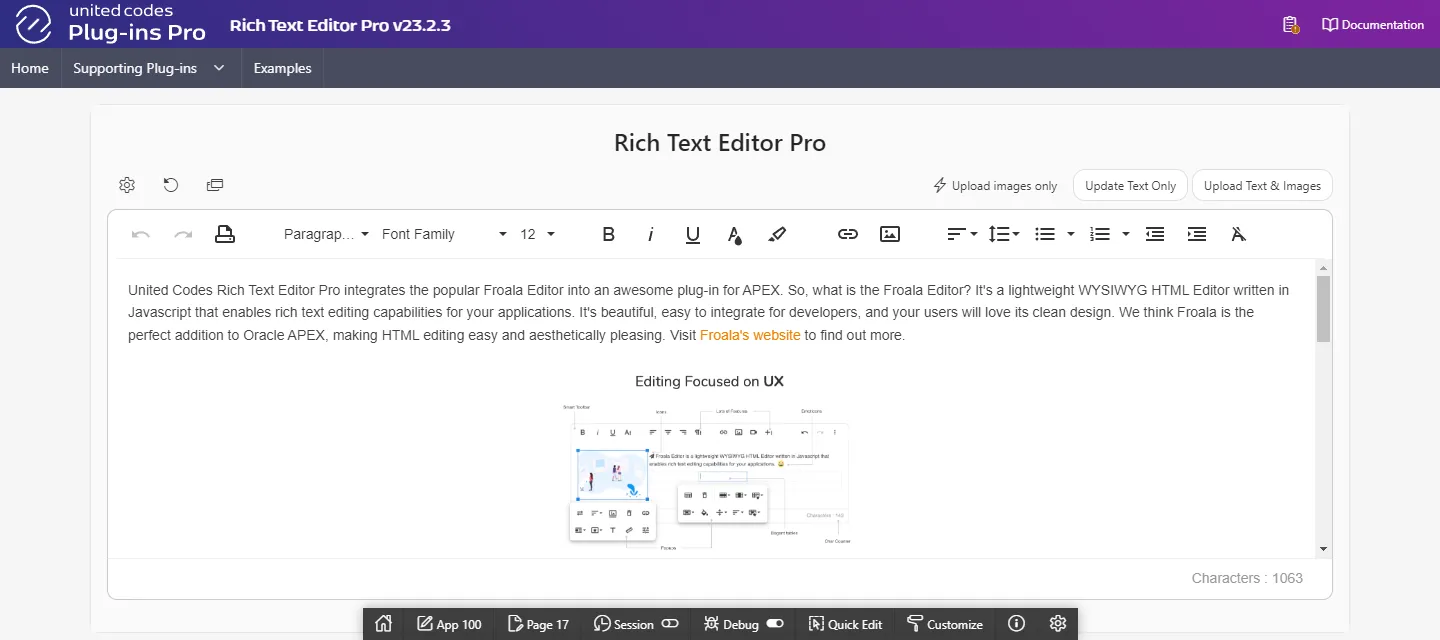

Responsive toolbar
Section titled “Responsive toolbar”toolbarButtons
Section titled “toolbarButtons”The value must be JSON object describing toolbar groups, or an array of buttons. The option specifies toolbar for normal screen devices (browser width is larger or equal 1200px).
The plug-in default value for toolbarButtons is computed using toolbar preset selected in the plug-in page item attribute Toolbar. The code below represents toolbar preset Full as anonymouse JavaScript function. The function can be used in the plug-in page item attribute Initialization JavaScript Code.
function( pOptions ){  var    text      = ['bold', 'strikeThrough', 'clearFormatting', '|', 'textColor', '|', 'backgroundColor', 'underline', 'italic', 'superscript', 'subscript', 'inlineClass', 'inlineStyle'],    paragraph = ['paragraphFormat', 'fontFamily', 'fontSize', '|', 'formatOL', 'formatUL', '|', 'align', 'lineHeight', 'indent', 'outdent', 'quote'],    rich      = ['insertLink', '|', 'insertImage', 'insertTable', 'insertHR', 'specialCharacters', 'fontAwesome', 'emoticons', 'insertVideo'],    misc      = ['undo', '|', 'fullscreen', 'redo', 'print', 'getPDF', 'selectAll', 'html', 'help']  ;
  pOptions.toolbarButtons = {    'moreParagraph': { 'buttons': paragraph, 'align': 'left' , 'buttonsVisible': 6 },    'moreText'     : { 'buttons': text     , 'align': 'left' , 'buttonsVisible': 4 },    'moreRich'     : { 'buttons': rich     , 'align': 'left' , 'buttonsVisible': 2 },    'moreMisc'     : { 'buttons': misc     , 'align': 'right', 'buttonsVisible': 2 }  };
  return pOptions;}
toolbarButtonsMD
Section titled “toolbarButtonsMD”The value must be JSON object describing toolbar groups, or an array of buttons. The options specifies toolbar for for medium screen devices (browser width is larger or equal 922px but less than 1200px).
The plug-in default value for toolbarButtonsMD is computed based on option toolbarButtons. The code below represents toolbar preset Full as anonymouse JavaScript function. The function can be used in the plug-in page item attribute Initialization JavaScript Code.
function( pOptions ){  pOptions.toolbarButtonsMD = $.extend(true, {}, pOptions.toolbarButtons);
  pOptions.toolbarButtonsMD.moreParagraph.buttonsVisible = 3;  pOptions.toolbarButtonsMD.moreText.buttonsVisible      = 4;  pOptions.toolbarButtonsMD.moreRich.buttonsVisible      = 2;  pOptions.toolbarButtonsMD.moreMisc.buttonsVisible      = 1;
  return pOptions;}
toolbarButtonsSM
Section titled “toolbarButtonsSM”The value must be JSON object describing toolbar groups, or an array of buttons. The options specifies toolbar for for small screen devices ( browser width is larger or equal 768px but less than 992px).
The plug-in default value for toolbarButtonsSM is computed based on option toolbarButtons. The code below represents toolbar preset Full as anonymouse JavaScript function. The function can be used in the plug-in page item attribute Initialization JavaScript Code.
function( pOptions ){  pOptions.toolbarButtonsSM = $.extend(true, {}, pOptions.toolbarButtons);
  pOptions.toolbarButtonsSM.moreParagraph.buttonsVisible = 2;  pOptions.toolbarButtonsSM.moreText.buttonsVisible      = 2;  pOptions.toolbarButtonsSM.moreRich.buttonsVisible      = 2;  pOptions.toolbarButtonsSM.moreMisc.buttonsVisible      = 1;
return pOptions;}toolbarButtonsXS
Section titled “toolbarButtonsXS”The value must be JSON object describing toolbar groups, or an array of buttons. The options specifies toolbar for for extra small screen devices (browser width is less than 768px).
The plug-in default value for toolbarButtonsXS is computed based on option toolbarButtons. The code below represents toolbar preset Full as anonymouse JavaScript function. The function can be used in the plug-in page item attribute Initialization JavaScript Code.
function( pOptions ){  pOptions.toolbarButtonsSM = $.extend(true, {}, pOptions.toolbarButtons);
  pOptions.toolbarButtonsXS.moreParagraph.buttonsVisible = 1;  pOptions.toolbarButtonsXS.moreText.buttonsVisible      = 2;  pOptions.toolbarButtonsXS.moreRich.buttonsVisible      = 2;  pOptions.toolbarButtonsXS.moreMisc.buttonsVisible      = 0;
  return pOptions;}